

SUPPORTING YOUR VR DEVICE AND EXPERIENCE
Welcome to BrainOn VR support. This page will help you get started, understand how the experience works, and troubleshoot common issues so you can get the most from your Vitanya NeuroEntrainment session.
Frequently asked questions
quick help
- App did not launch? Restart the headset by pressing and holding the button on the left side of the headset. You may need to repeat the process to power the headset back on.
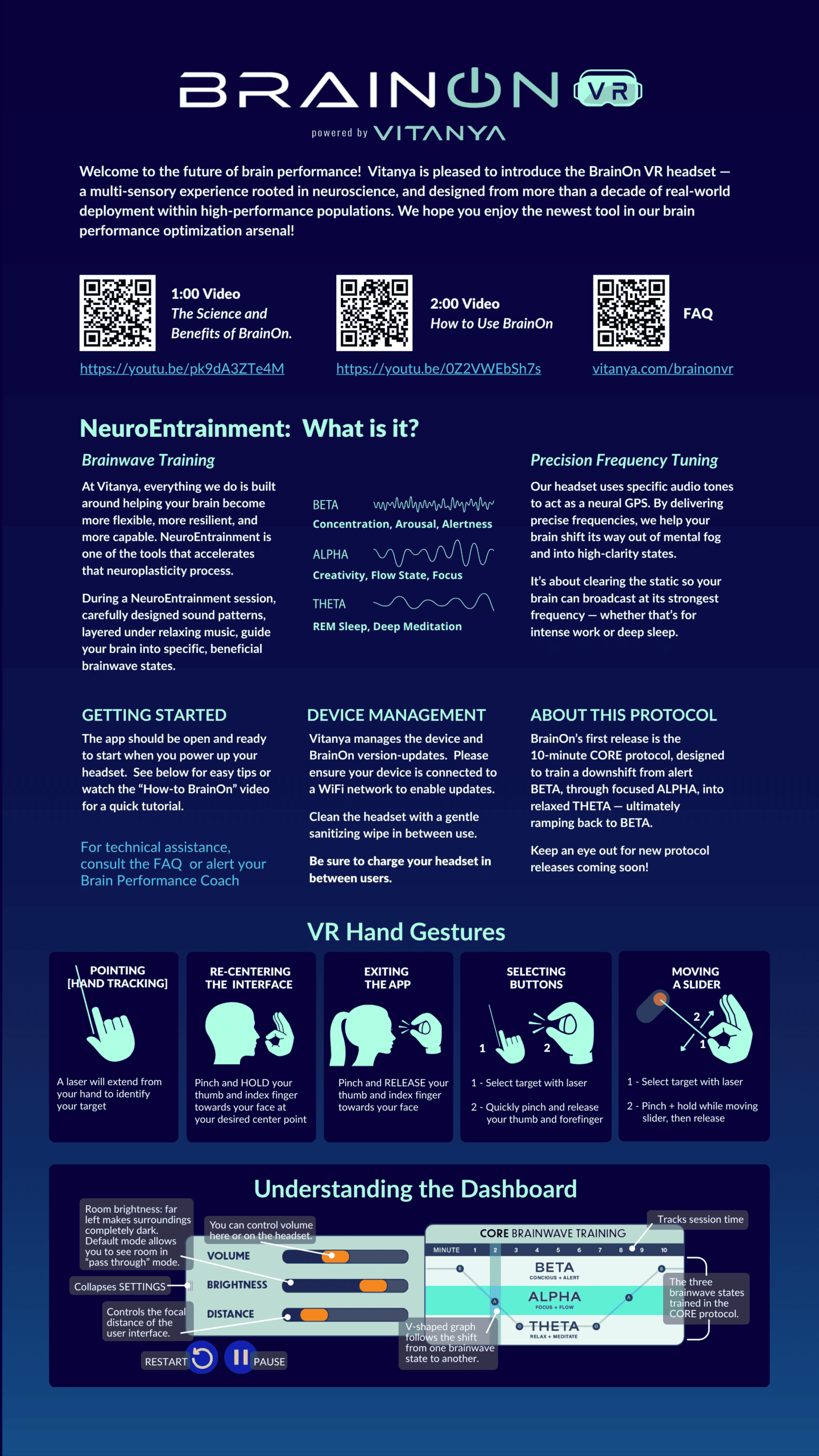
- Can’t see your surroundings? Move the Brightness slider to the right or restart the app.
- Ensure you’re on the latest version of the app: Connect to Wi-Fi.
- Previous session still open? Use the restart button in the lower left corner.
- Shared device? Clean, power down, and return it to charging after use.
- Still need help? Contact your Brain Performance Coach.
BrainOn VR is Vitanya’s immersive NeuroEntrainment experience, delivered through Meta Quest 3 headsets. It is designed to help guide the brain into beneficial states that support focus, recovery, resilience, and performance.
Built on neuroscience and informed by more than a decade of real-world use with high-performance populations, BrainOn VR represents the next evolution of Vitanya’s brain performance tools.
Yes. BrainOn VR’s default mode is Pass Through, which means you will be able to see your environment while using the headset. This allows users to remain visually aware of the room around them and, in many cases, even view their phone if needed.
If the Brightness slider is moved far left, your environment may no longer be visible. This changes the visual experience from Pass Through to a darker, more immersive view.
If you want to restore visibility of your surroundings, move the Brightness setting to the right.
BrainOn VR replaces the BrainTap headsets previously used in our program. It delivers Vitanya’s NeuroEntrainment experience through custom-designed, more immersive VR platform, while also allowing for easier software updates, better content delivery, and future feature expansion.
The Vitanya BrainOn VR app is the primary experience on the device. In most cases, the app should load automatically when the headset powers on.
Usually, no. The headset is set up so BrainOn VR should be ready to auto launch at startup. If it does not appear automatically, you may need to activate the restart button in the bottom left corner.
No. You do not need to keep your eyes open during the experience. The preference is yours.
What if the experience makes me dizzy?
If the visual portion of the experience feels uncomfortable, you may close your eyes. You will still receive the benefits of the audio portion of the NeuroEntrainment session.
Wi-Fi allows the device to receive important updates from Vitanya, including:
- Application improvements
- Application performance updates
- New content releases
To keep the experience current and functioning as intended, headsets should be connected to Wi-Fi regularly.
Will BrainOn VR still work without Wi-Fi?
In many cases, yes — but the headset may not receive important updates or newly released content until it reconnects. For best results, keep the device connected to Wi-Fi whenever possible.
Yes. Some BrainOn VR headsets are intended for shared use across teams or locations. In shared environments, users should fully exit the session and power down the headset after use.
For support, contact your Brain Performance Coach or your site’s designated device lead.
TROUBLESHOOTING
Try these steps:
- Wait 30–60 seconds to allow the device to complete startup.
- Confirm the headset has enough battery charge.
- Power the device off fully, then restart it.
If the problem continues, contact your Brain Performance Coach or site administrator.
Because some headsets are shared, you may occasionally pick up a device that was not fully exited or powered down.
To reset the experience:
- Activate the restart button in the bottom left corner.
- If the headset is unresponsive, restart the device.
If the headset is offline, it may not receive bug fixes, app updates, or new content.
To reconnect:
- Pinch and release your thumb and index finger towards your face to exit the BrainOn VR app to access the device menu.
- Select the small Wi-Fi icon.
- Choose the correct network.
- Enter the password if prompted.
- Reopen the Vitanya BrainOn VR app after the device connects.
If you do not know the network credentials, contact your local site lead.
The BrainOn VR app defaults to Pass Through, so you should normally be able to see your environment while using the headset.
If you cannot see your surroundings:
- Move the Brightness slider to the right.
- Restart the app if needed.
If the issue continues, contact your Brain Performance Coach or site lead.
Check the following:
- the device is charged
- the headset is fully powered on, not just asleep
- the app has launched
- the device has been restarted if needed
If the issue continues, reconnect to Wi-Fi and try again.
For locations using BrainOn VR across multiple users, we recommend the following:
- Return the headset to its charger or storage location after use
- Fully exit the session before handing off the device
- Power down the headset when not in use
- Clean the headset between users with a gentle cleansing wipe
- Keep the device connected to Wi-Fi whenever possible
- Designate one team member as the local point person for basic device support
Wi-Fi allows the device to receive important updates from Vitanya, including:
- Application improvements
- Application performance updates
- New content releases
To keep the experience current and functioning as intended, headsets should be connected to Wi-Fi regularly.
Will BrainOn VR still work without Wi-Fi?
In many cases, yes — but the headset may not receive important updates or newly released content until it reconnects. For best results, keep the device connected to Wi-Fi whenever possible.
For support, contact your Brain Performance Coach or your site’s designated device lead.
View the handy "How-to" poster