VR SupportWelcome to the future of brain performance. Get started, learn the controls, and troubleshoot common issues so you get the most from every Vitanya NeuroEntrainment session.
A multi-sensory experience rooted in neuroscience, designed from more than a decade of real-world deployment with high-performance populations. Two short videos cover the essentials.
The app should be open and ready to start when you power up your headset. See the tips below, or watch the “How to Use BrainOn” video for a quick tutorial.
For technical assistance, see the FAQ or alert your Brain Performance Coach.
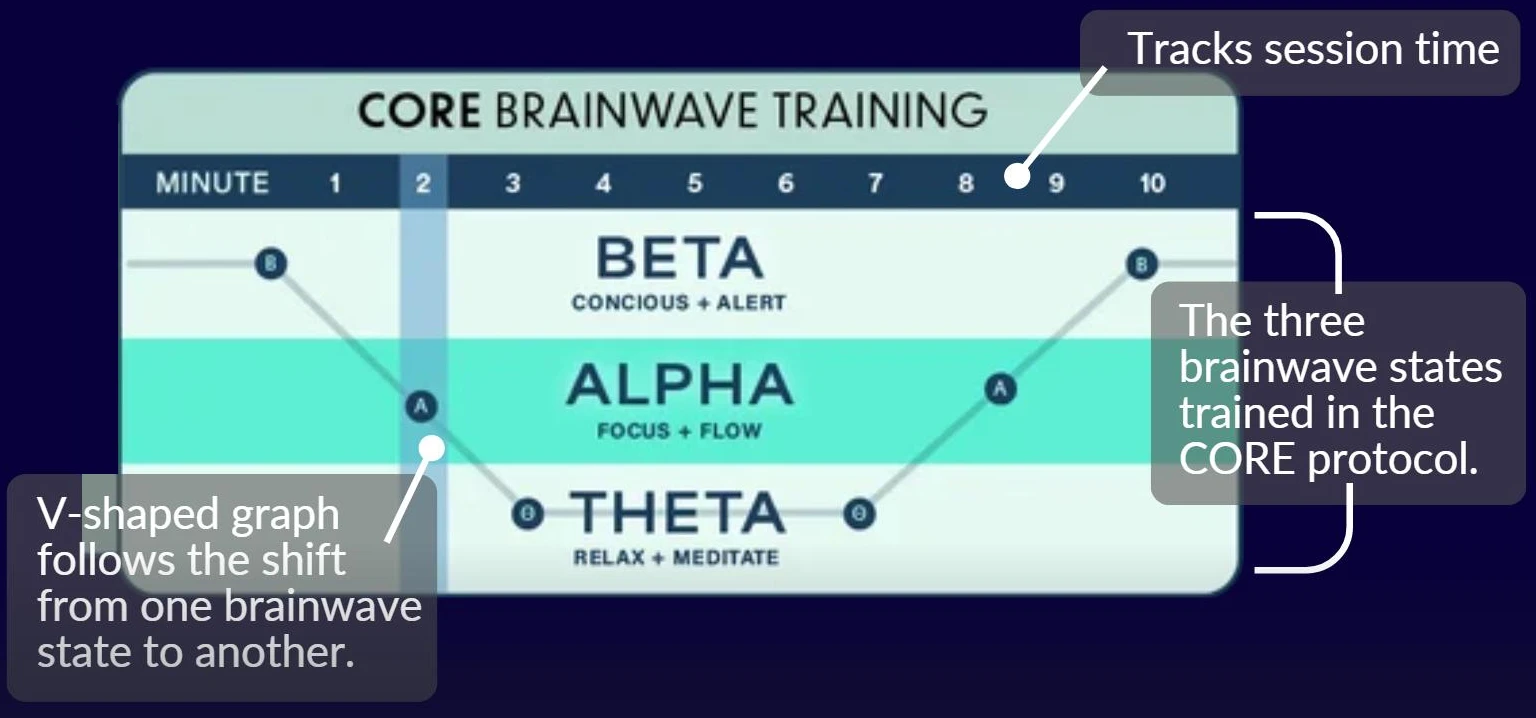
BrainOn’s first release is the 10-minute CORE protocol, designed to train a downshift from alert BETA, through focused ALPHA, into relaxed THETA — ultimately ramping back to BETA.
Keep an eye out for new protocol releases coming soon.
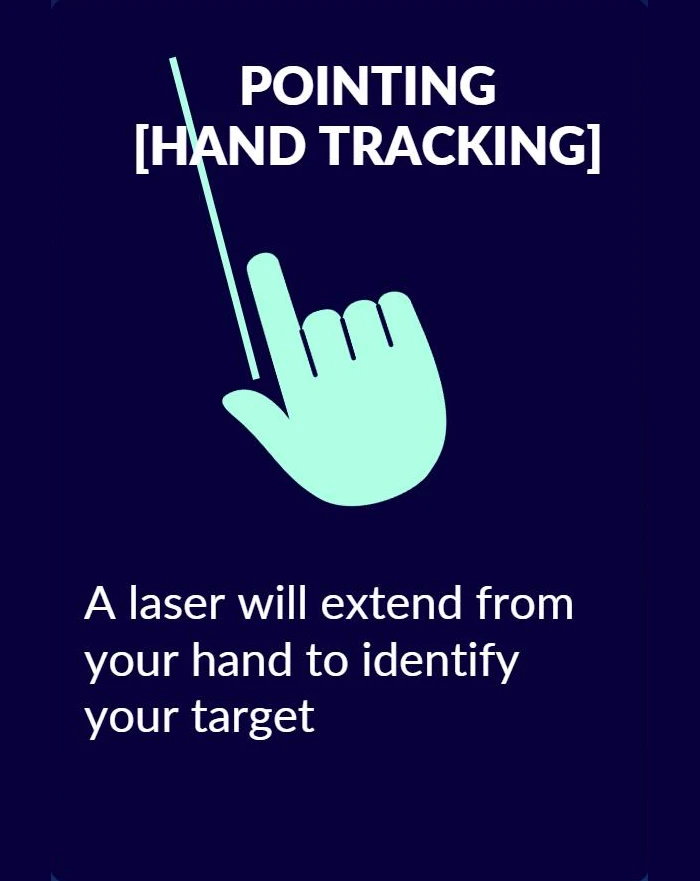
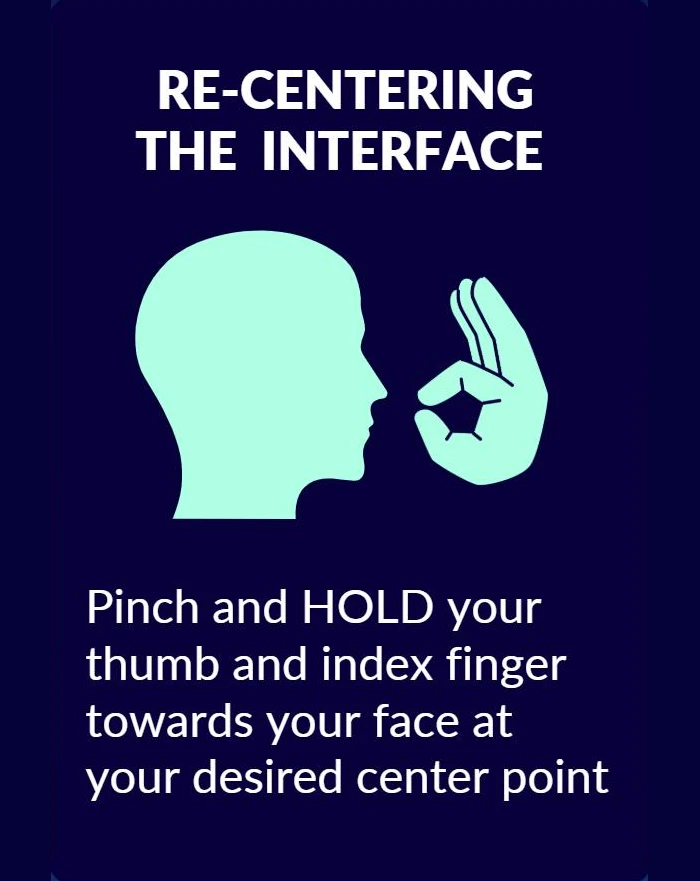
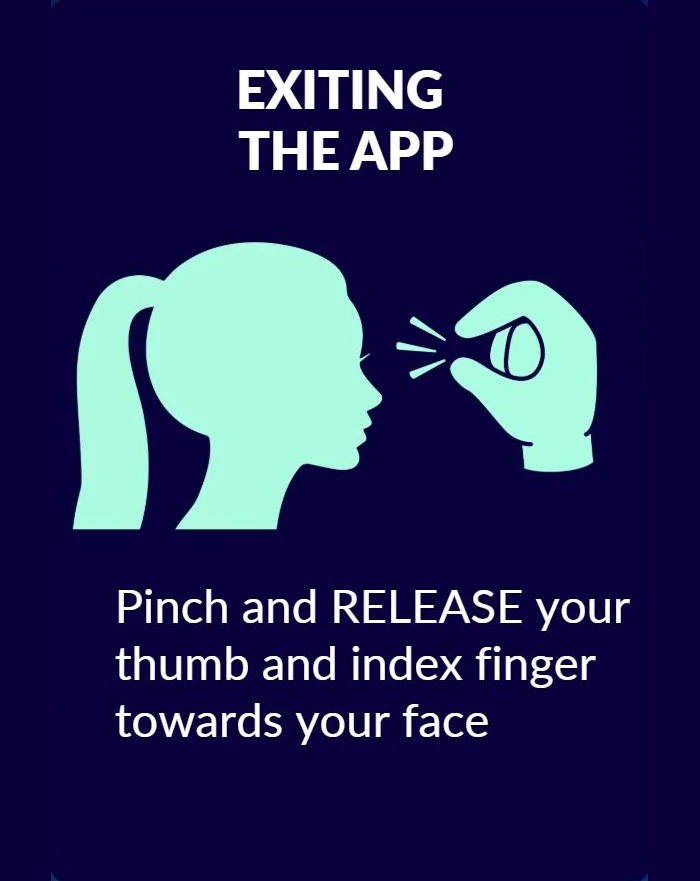
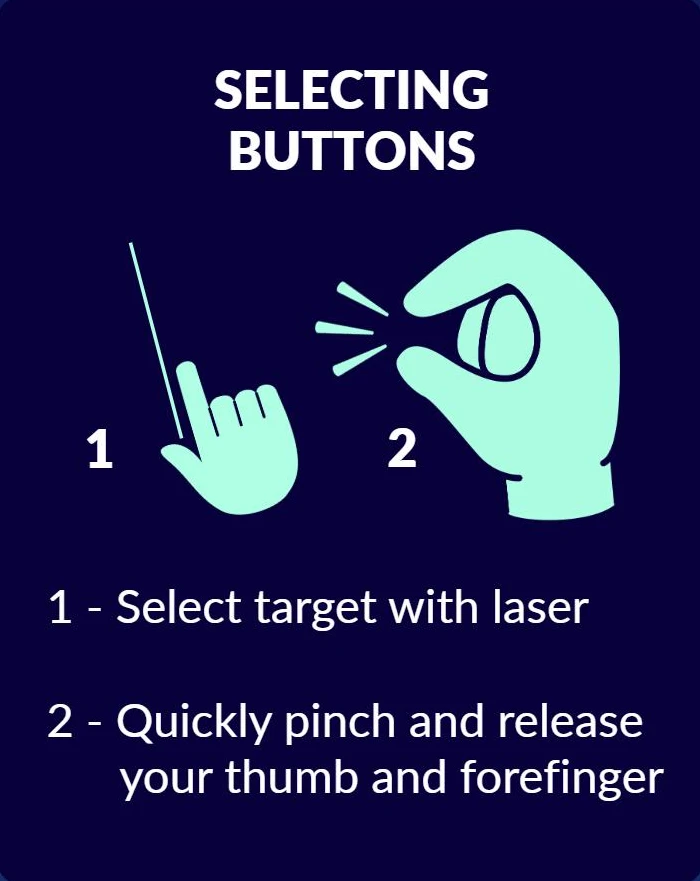
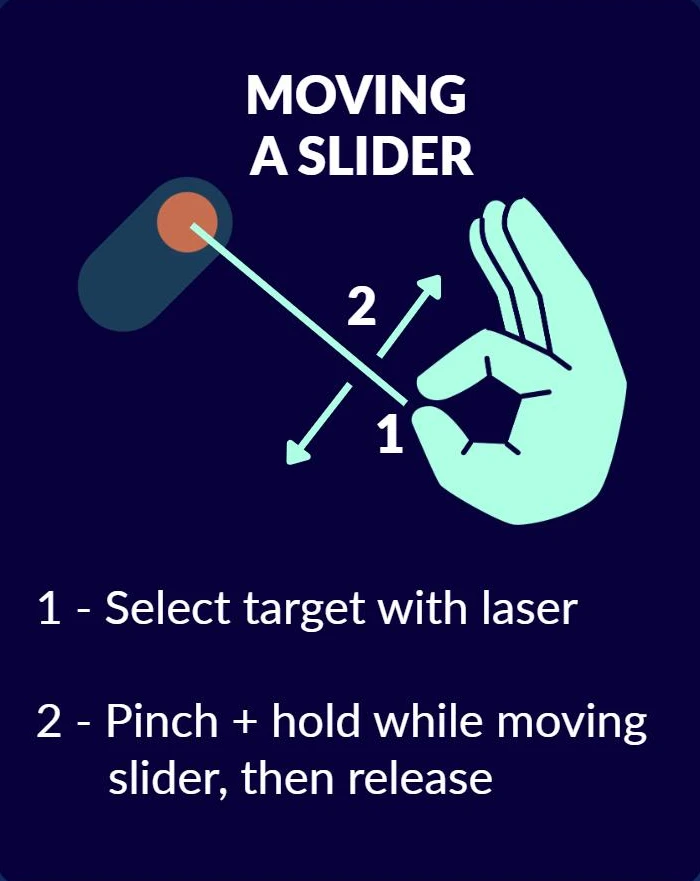
BrainOn VR uses hand tracking. Five gestures run the whole experience.


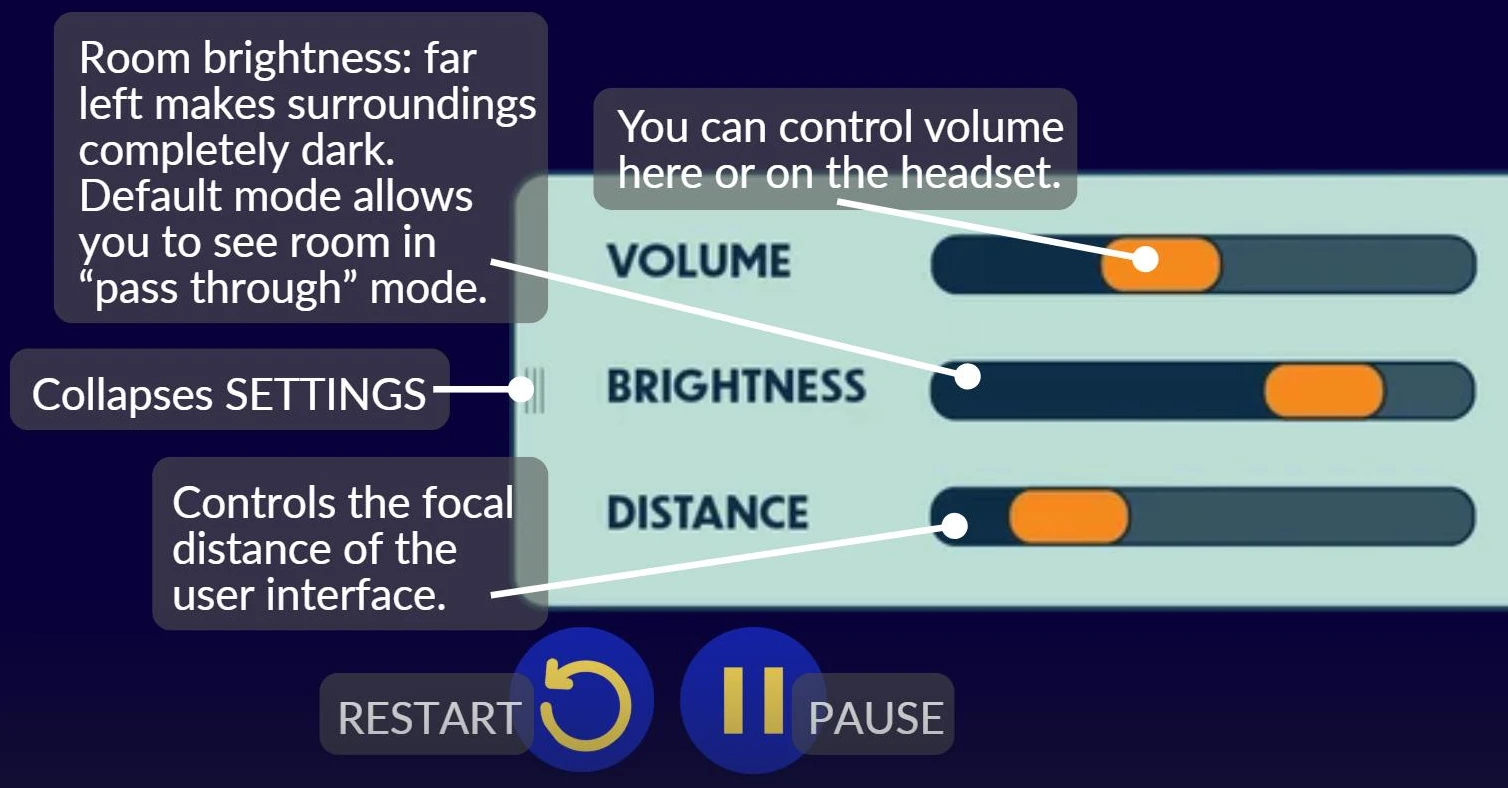
The in-headset dashboard has two panels: settings on the left, your session on the right.


Room brightness. Far left makes your surroundings completely dark; the default lets you see the room in Pass Through mode.
Control volume here or on the headset.
Controls the focal distance of the user interface.
Collapses the settings panel.
Restart the session from the beginning, or pause it.
Tracks session time.
Follows the shift from one brainwave state to another.
The three brainwave states trained in the CORE protocol.
At Vitanya, everything we do is built around helping your brain become more flexible, more resilient, and more capable. NeuroEntrainment is one of the tools that accelerates that neuroplasticity process.
During a NeuroEntrainment session, carefully designed sound patterns, layered under relaxing music, guide your brain into specific, beneficial brainwave states.
Our headset uses specific audio tones to act as a neural GPS. By delivering precise frequencies, we help your brain shift its way out of mental fog and into high-clarity states.
It’s about clearing the static so your brain can broadcast at its strongest frequency — whether that’s for intense work or deep sleep.
Restart the headset by pressing and holding the button on the left side of the headset. You may need to repeat the process to power the headset back on.
Move the Brightness slider to the right or restart the app.
Connect to Wi-Fi so the app can update.
Use the restart button in the lower left corner.
Clean, power down, and return it to charging after use.
Contact your Brain Performance Coach.
BrainOn VR is Vitanya’s immersive NeuroEntrainment experience, delivered through Meta Quest 3 headsets. It is designed to help guide the brain into beneficial states that support focus, recovery, resilience, and performance.
Built on neuroscience and informed by more than a decade of real-world use with high-performance populations, BrainOn VR represents the next evolution of Vitanya’s brain performance tools.
Yes. BrainOn VR’s default mode is Pass Through, which means you will be able to see your environment while using the headset. This allows users to remain visually aware of the room around them and, in many cases, even view their phone if needed.
If the Brightness slider is moved far left, your environment may no longer be visible. This changes the visual experience from Pass Through to a darker, more immersive view.
If you want to restore visibility of your surroundings, move the Brightness setting to the right.
BrainOn VR replaces the BrainTap headsets previously used in our program. It delivers Vitanya’s NeuroEntrainment experience through a custom-designed, more immersive VR platform, while also allowing for easier software updates, better content delivery, and future feature expansion.
The Vitanya BrainOn VR app is the primary experience on the device. In most cases, the app should load automatically when the headset powers on.
Usually, no. The headset is set up so BrainOn VR should be ready to auto launch at startup. If it does not appear automatically, you may need to activate the restart button in the bottom left corner.
No. You do not need to keep your eyes open during the experience. The preference is yours.
If the visual portion of the experience feels uncomfortable, you may close your eyes. You will still receive the benefits of the audio portion of the NeuroEntrainment session.
Wi-Fi allows the device to receive important updates from Vitanya, including:
To keep the experience current and functioning as intended, headsets should be connected to Wi-Fi regularly.
In many cases, yes — but the headset may not receive important updates or newly released content until it reconnects. For best results, keep the device connected to Wi-Fi whenever possible.
Yes. Some BrainOn VR headsets are intended for shared use across teams or locations. In shared environments, users should fully exit the session and power down the headset after use.
For support, contact your Brain Performance Coach or your site’s designated device lead.
Try these steps:
If the problem continues, contact your Brain Performance Coach or site administrator.
Because some headsets are shared, you may occasionally pick up a device that was not fully exited or powered down.
To reset the experience:
If the headset is offline, it may not receive bug fixes, app updates, or new content.
To reconnect:
If you do not know the network credentials, contact your local site lead.
The BrainOn VR app defaults to Pass Through, so you should normally be able to see your environment while using the headset.
If you cannot see your surroundings:
If the issue continues, contact your Brain Performance Coach or site lead.
Check the following:
If the issue continues, reconnect to Wi-Fi and try again.